How to upgrade the M250 reader via the Reader Configuration Utility(RCU)
(How to upgrade reader firmware without Centerscape via network or USB cable)
The latest firmware version can be found here: (fw.2.23.zip) 2.23 firmware bundle.
Updating Reader Firmware via USB cable
If you don't have access to Centerscape but have physical access to a reader, you can connect a USB-A to USB-B cable from your laptop to the reader and use the Reader Configuration Utility (RCU) v 3.0.0
If you need a driver for the reader it can be found here: Reader Driver File
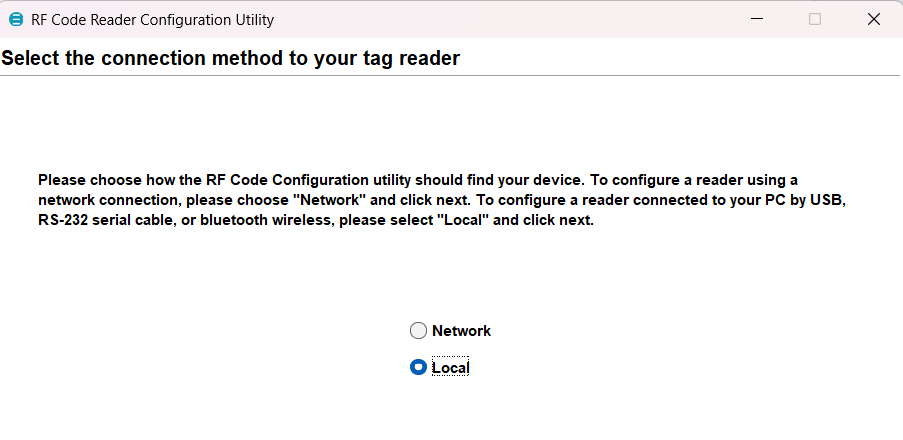
After installing the RCU and running it you will be presented with 2 connection options - pick Local and click Next.
The RCU will scan USB ports - select the Device M250, click on Configure Reader and click next.

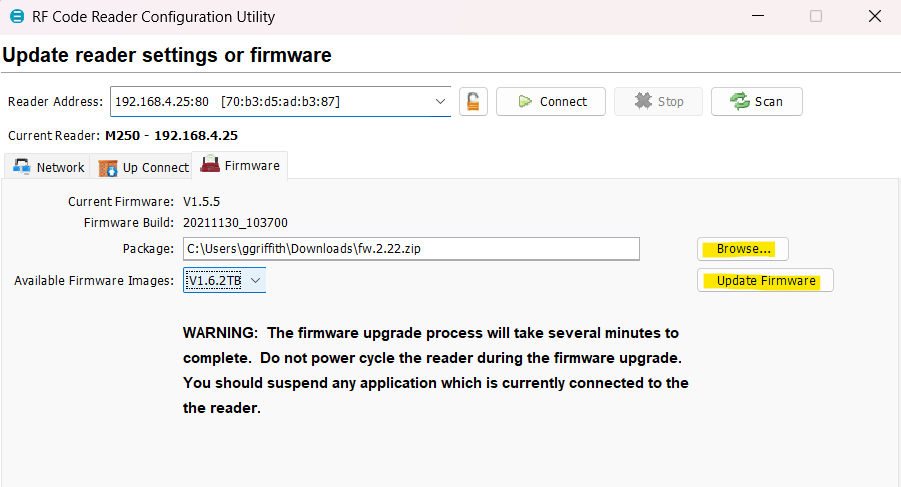
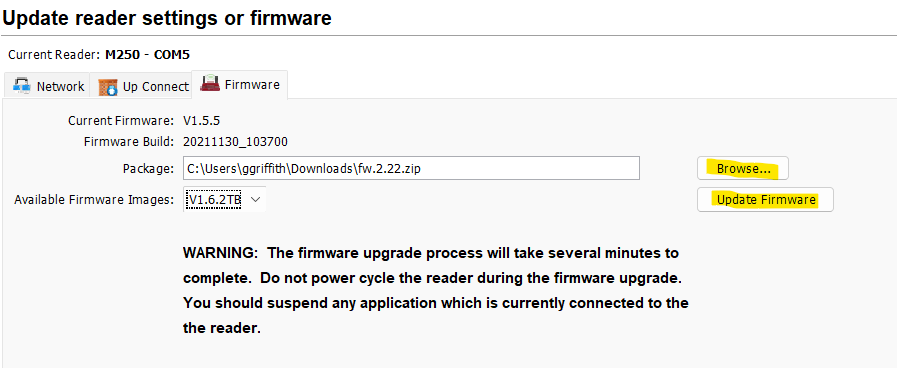
Browse and select the firmware file and then click Update Firmware. This process takes several minutes to complete - you can monitor the progress bar on the bottom right of the RCU. When complete verify the Current Firmware.
Updating Reader Firmware via network
If the reader(s) and your laptop are on the same network segment you can use the Network option.
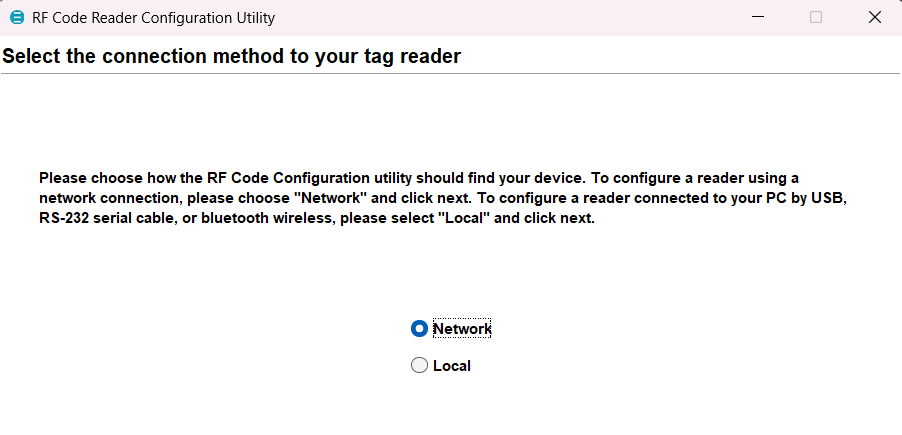
After installing the RCU and running it you will be presented with 2 connection options - pick Network and click Next.
If the readers(s) do not show up in the dropdown list, click scan and it should autodiscover them.
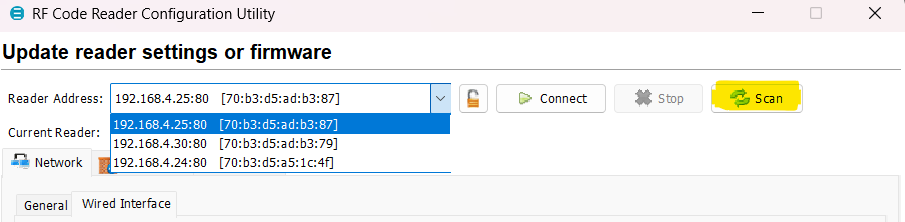
Select your reader from the dropdown and click connect.
Browse and select the firmware file and then click Update Firmware. This process takes several minutes to complete - you can monitor the progress bar on the bottom right of the RCU. When complete verify the Current Firmware.